
Reaction time and accuracy are important factors in determining the performance of a player in fast-paced video games. Due to this, a player should not solely depend on his or her skills, but also ensure that their gaming equipment is adequately set up. The DPI setting is one of the most significant factors of mouse performance that directly influences the control and comfort during the play. This guide will provide a Mouse DPI Settings for Gaming, its functionality, and how you can set it appropriately to attain improved outcomes in gaming.
What Is DPI on a Mouse?
The concept of DPI should be first learned before knowing how to manipulate it. DPI is the abbreviation of Dots Per Inch and is a level of sensitivity of a computer mouse. Simply put, DPI is used to determine the distance that the cursor moves on screen when your mouse is literally moved on your table.
An example of this is that given a mouse with a DPI of 1000, one inch (a little over 2.54 cm) of movement of the mouse will move the cursor 1000 pixels on the screen. The cursor will move twice as much to the same physical movement when you set the value to 2000 DPI.
This implies that with increase in DPI settings, the cursor is able to move with lesser physical movement, whilst the decrease in DPI values results in increased hand movements but greater precision.
The other abbreviation that you may come across when studying computer mice is CPI (Counts Per Inch). The fact is that CPI and DPI have practically the same meaning and can be used synonymously.
How to Check Your Mouse DPI Settings for Gaming
There are a few easy methods of determining the DPI of your mouse.
First, you may verify product specifications, in the user manual, or on the manufacturer site. The majority of brands have an explicit mention of the range of DPI that the device supports.
The next way is to check the lower part of the mouse, where the manufacturers may engrave the highest DPI or enlist various predefined levels of sensitivity like 800 / 1400 / 2800.
A lot of gaming mice in the market today are also supplied with their own software applications. After the official program is installed, you will be able to see the current value of DPI, to tune it accurately, and even to create several DPI profiles of various activities.
Choosing the Right Mouse DPI Settings for Gaming
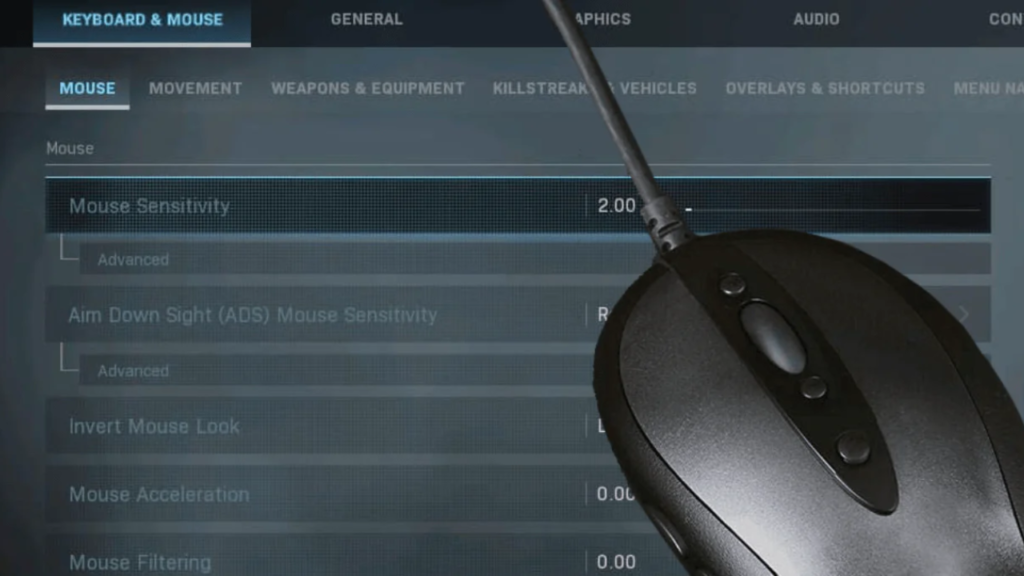
There is no one setting of DPI that fits all. Depending on how you use your computer, the optimum value is highly dependent on your computer use. Among these areas would be that what the DPI that the gamer prefers would be far different than that the graphic designer or office worker would prefer.
Thus, you should be able to think of the work that you have to do the most and then decide about the worth of DPI. Choose either fastness of the cursor or accuracy.
A majority of game mice have a DPI switch button, which enables users to switch between multiple levels of sensitivity in real-time. Moreover, it may be more personalized, setting up the software designed by the manufacturer, and you may create several profiles to work upon various activities.
An excellent way to make apps on your mouse more comfortable and productive is by customizing it adequately. The trick of it all is whether to have the greater number of things to do more hurriedly or safely.
Common DPI Ranges
Particularly though the role of personal preference is significant, there are some ranges/periods of DPI that are prevalent amongst gamers and professionals.
DPI 400-800: This is another highly sought range by the FPS gamers such as CS2 and Valorant. It is highly accurate and this helps in accurate aiming. It can also be used when there is need to have smooth and controlled movement of the cursor.
DPI 800-1600: This sensitivity is a good compromise between speed and accuracy. This level of sensitivity is preferred by many gamers that play battle royale, MMO, MOBA, or RTS titles. It is also suitable to the daily use of computers.
DPI 1600 or higher: DPI values are higher and as such, allow the cursor to move at an extremely high speed with minimum movement of the hand. Some users like this speed but competitive gamers seldom use this high sensitivity as it may decrease accuracy.
Adjusting Mouse Sensitivity in Windows
And not only can you modify the DPI directly on the mouse, but you can also adjust the speed of the cursor movement in Windows options.
To achieve this, go to Settings and find Mouse Settings. Once you have entered this section, you will see the Mouse Pointer Speed slider. This environment determines the amount of distance that the cursor travels in relation to the mouse motion.
Windows also offers 20 levels of speeds, which enable the user to select the most preferable level.
In the same settings window, it is recommended to disable “Enhance Pointer Precision.” It has an advantage of accelerating the movement of your cursor, this may give you unconsistent results when you move the mouse by the same distance several times. To gamers who prefer being accurate, it is normally off.
How to Adjust DPI on a Mouse
Next we will examine how to alter DPI based on the kind of mouse that you have.
Budget Mice
Simple mouse models frequently cannot be adjusted in DPI, specifically. When this happens, the best solution is to modify the cursor speed in Windows Control panel by going to:
Control Panel Motion Pointer Options Motion.
Mice With DPI Switch Buttons
A dedicated DPI button is now available on many cheap mice. Although you cannot select specific sensitivity values, by pressing the button you can cycle through a number of preset sensitivity values chosen by the manufacturer. These might include options like 600 / 900 / 1300 DPI.
Mice With Dedicated Software
Higher-end mice often have their configuration software included. These applications enable the device to be customized into details.
With this kind of programs, you can assign a certain DPI value e.g. 1111 DPI and make several profiles based on various tasks or games.
In order to install this software, you should go to the official site of the manufacturer of the mouse and find the model of your device. The product box also contains a QR code leading to the download page at times.
They are usually user friendly allowing one to easily change settings and control profiles.
Sensitivity Settings in Video Games
Besides mouse DPI, most games have a separate configuration setting named sensitivity (also known as sens). The parameter defines the distance through which the crosshair or camera moves with the movement of the mouse.
Due to the differences in each game engine, the same physical movement of the mouse may feel different with different games. Thus, the sensitivity settings should be changed on a game-by-game basis.
It is very sensitive such that any tiny movement by the mouse can cause the crosshair to move rapidly. On the other hand, low sensitivity demands bigger movements of the hand but it enhances accuracy on aiming.
Professional players of competitive shooters tend to use low or medium sensitivity to have a better control during aiming.
Here are few examples that can be given: some players play with a sensitivity of 1-3 at resolution of 1920×1080.
Understanding eDPI
You will also come across the eDPI (Effective DPI). This value is used to compare the settings of the mouse among players.
The formula is easy:
eDPI = DPI × in-game sensitivity
For example:
Player A has 800 DPI, and 0.4 sensitivity, whereas Player B has 400 DPI, and 0.8 sensitivity.
Although the settings seem to be different, the fact is that both players have the same eDPI of 320, which is the same effective sensitivity of the players.
Typical Mouse Settings for Popular Games
| Game | DPI | Sensitivity | eDPI |
| CS2 | 400 | 1 | 400 |
| Valorant | 800 | 0.45 | 360 |
| Call of Duty | 800 | 2.4 | 1920 |
| PUBG | 1600 | 20 | 320 |
Mouse Settings Used by Professional Players
CS2
NiKo
DPI: 800
Sensitivity: 0.7
eDPI: 560
ZywOo
DPI: 400
Sensitivity: 1.8
eDPI: 720
b1t
DPI: 400
Sensitivity: 1.65
eDPI: 660
VALORANT
brawk
DPI: 800
Sensitivity: 0.2
eDPI: 160
Ethan
DPI: 400
Sensitivity: 0.58
eDPI: 232
League of Legends
Faker
DPI: 1600
Mouse Speed: 65
Camera Move Speed: 65
Zeus
DPI: 800
Mouse Speed: 55
Camera Move Speed: 50
Additional Mouse Customization Options
In addition to the Mouse DPI Settings for Gaming and sensitivity, several of the gaming mice have additional programmable buttons. A mouse can be equipped with 5 to 12 buttons, depending on the model.
These buttons may be programmed to different functions, like changing DPI profiles or executing shortcuts.
As an example, to these buttons, players tend to tie actions such as jumping, throwing grenades, or enabling abilities.
These controls are configurable in the game settings, which can be accessed by opening the key binding or control customization menu.
Conclusion
No universal DPI setting fits well with all users. Every individual does various tasks on his or her computer hence the best configuration is different.
The same thing can be applied to video games. Some of the genres involve rapid movement of the cursor, whereas others involve high precision.
Due to this, the optimal DPI and sensitivity need to be determined through experimentation. Trial and error until you find what is comfortable.
Know About More Accessories :- Best Gaming Headphones Under ₹50000 For Android Mobile Gamers
